Recovery hub firmware
Hub firmware recovery is used when a hub cannot start normally after an interrupted or failed firmware update.
During recovery, MOCPilot restores the hub firmware path so the hub can be updated to the latest supported firmware again. Use this process only when the hub is not responding normally, when MOCPilot shows that the hub is in recovery mode, or when a previous firmware update failed.
Keep the hub powered on and keep your device close to the hub during the whole recovery process. Disconnecting Bluetooth, closing MOCPilot, removing batteries, or turning off the hub while firmware is being uploaded may cause the recovery to fail.
When recovery is required
Firmware recovery may be required if:
- A firmware update did not finish successfully.
- The hub no longer connects as a normal hub.
- The hub appears as LEGO Bootloader in MOCPilot.
- MOCPilot detects that the hub is connected in firmware recovery mode.
Before starting recovery, make sure the hub has enough battery power. If possible, also make sure the phone, tablet, or computer running MOCPilot is charged and Bluetooth is enabled.
Supported hubs
Firmware recovery is supported for the same hubs as firmware updating:
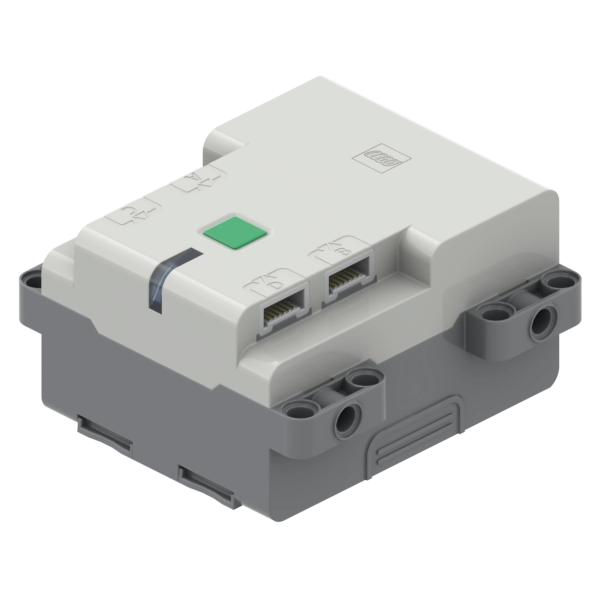
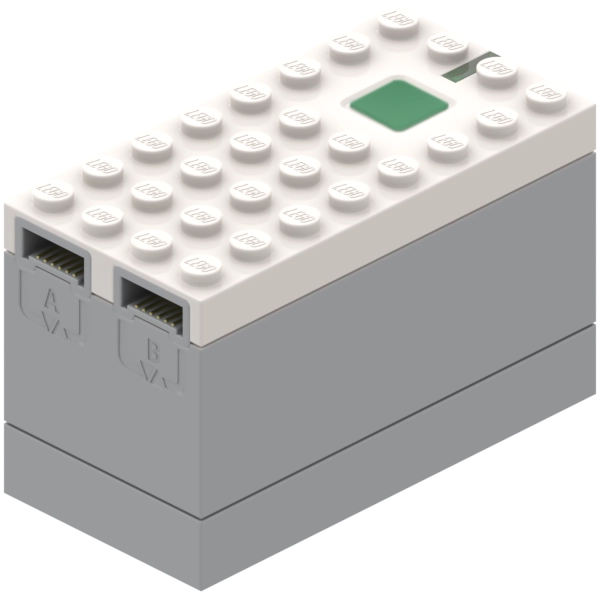
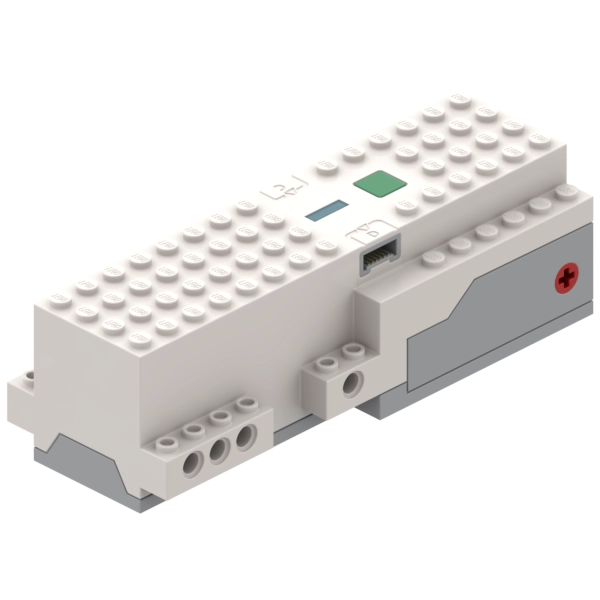
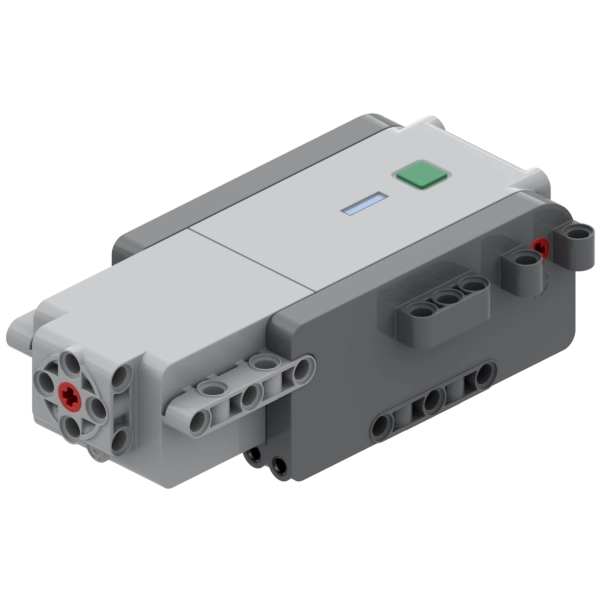
Put Technic Hub, Boost Hub, and City Hub into recovery mode
Technic Hub, Boost Hub, and the small City Hub use the bootloader connection flow:
- Turn the hub off.
- Press and hold the green button.
- Keep holding the button until the hub LED starts blinking purple.
- Do not release the button while the LED is blinking purple.
- While still holding the button, open My Bluetooth Hubs in MOCPilot and connect to the hub.
- After the hub is connected in bootloader mode, you can release the button.
When the hub is in recovery mode, it may appear as LEGO Bootloader instead of its normal hub name.
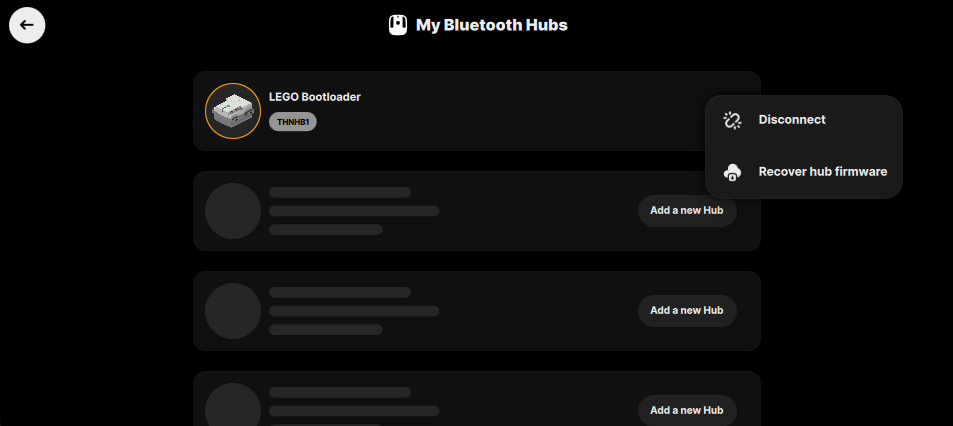
Put Technic Move Hub into recovery mode
Technic Move Hub uses a different recovery mode sequence than the other supported hubs. It does not connect as LEGO Bootloader. Instead, this recovery sequence loads the factory firmware version 1.2.3, which is not intended as the final firmware for normal use.
To restore Technic Move Hub firmware:
- Turn the hub off.
- Press and hold the green button.
- Keep holding the green button for about one minute.
- Release the button.
- Wait until the hub LED starts blinking white.
- Open My Bluetooth Hubs in MOCPilot and connect to the hub.
After the hub connects, MOCPilot will detect the factory firmware and offer to update the hub to the latest available firmware version. Start the firmware update and wait until it finishes.
Start recovery from the dialog
When MOCPilot detects a hub connected in firmware recovery mode, it shows a recovery dialog.
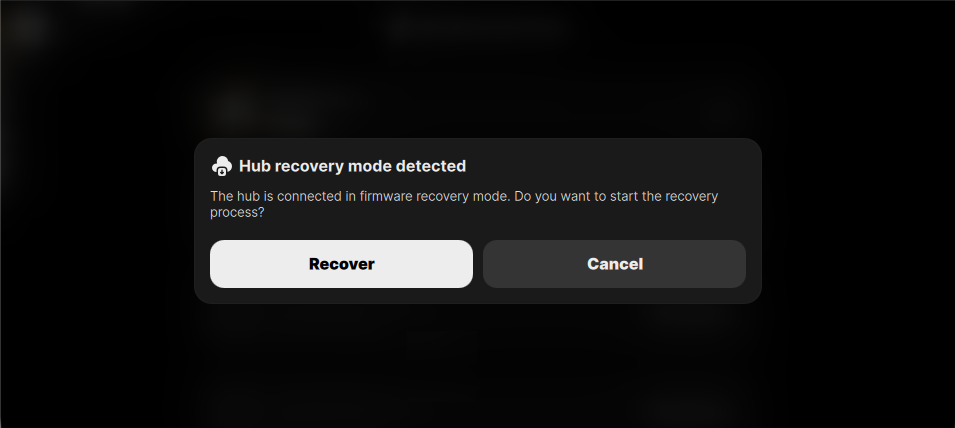
Select Recover to start uploading firmware to the hub.
If you are not ready to start recovery, select Cancel. You can start recovery later from the hub context menu.
Start recovery from the hub menu
To start recovery manually:
- Open My Bluetooth Hubs.
- Find the hub shown as LEGO Bootloader.
- Open the hub context menu.
- Select Recover hub firmware.
During firmware recovery
After recovery starts, MOCPilot uploads firmware to the hub. The app shows the progress on screen.
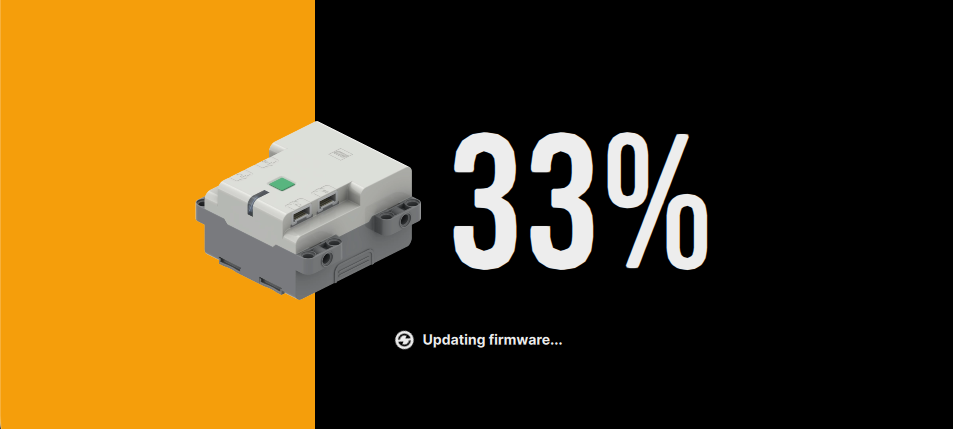
Wait until the process is complete. Do not move the hub far away from your device, close the app, disable Bluetooth, or remove power from the hub.
The hub may restart or reconnect several times during the process. This is expected. Keep MOCPilot open and wait for the recovery to finish.
Finish recovery
When the recovery finishes successfully, MOCPilot shows a confirmation dialog.
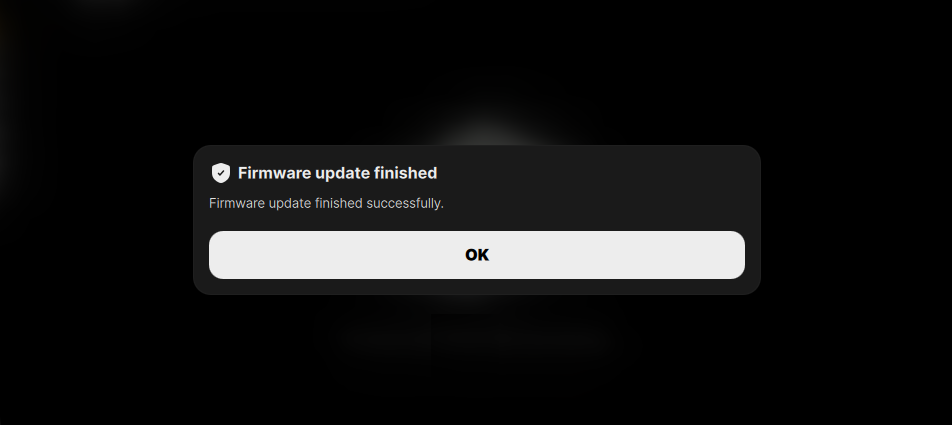
Select OK. The hub should restart and reconnect as a normal hub instead of LEGO Bootloader.
After recovery is complete, check the hub in My Bluetooth Hubs. If MOCPilot still reports that a firmware update is required, run the normal Firmware updating process.
If recovery fails
If recovery does not finish successfully:
- Keep the hub close to your device.
- Power-cycle the hub.
- Put the hub into recovery mode again.
- Connect to LEGO Bootloader in MOCPilot.
- Start Recover hub firmware again.
If the update failed message appears again, repeat the recovery procedure from the beginning. If the hub still cannot be recovered after several attempts, replace or recharge the batteries and try again.