Blocks Introducing
MOCPilot uses a visual block programming system that looks and feels similar to Scratch. Each block has a specific role, and valid combinations define control flow and data flow through a script. It uses drag-and-drop logic and Scratch-like interaction patterns to provide a convenient and familiar way to build programs.
This is a different block system with its own block set and behavior. MOCPilot programs are not compatible with Scratch projects: MOCPilot programs cannot be imported into Scratch, and Scratch programs cannot be imported into MOCPilot.
Block shapes and meaning
Hat Blocks
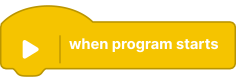
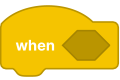
Start a script when a specific event occurs. Blocks can only be attached below.
Stack Blocks

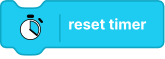
Main command blocks that perform actions.
C Blocks
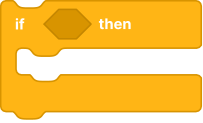
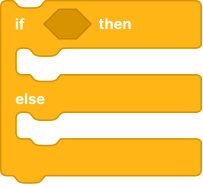
C-shaped control blocks that contain nested block stacks (loops/conditions).
Reporter Blocks
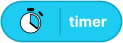
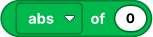
Return values such as numbers or strings.
Boolean Blocks
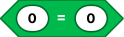

Return only true or false, typically used in conditions.
Cap Blocks
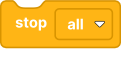
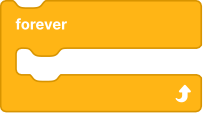
End scripts and do not allow blocks below.
Blocks Stack
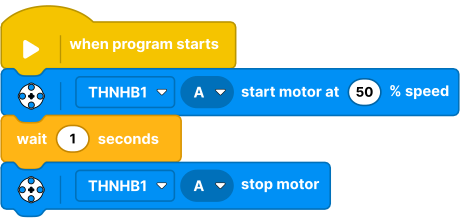
A block stack is a sequence of connected blocks that runs as one script flow from top to bottom. Stacks usually start with an event block and then execute attached blocks in order.
Script execution model
- A script usually starts from an event block.
- Connected stack blocks run top to bottom.
- Multiple scripts can run in parallel.
- Message/broadcast blocks are used to synchronize scripts.
- A block stack is a sequence of blocks connected together.
Data and values
- Reporter blocks can be nested inside command/condition inputs.
- Variables store reusable values across blocks and scripts.
- Lists store ordered collections for history, queues, and lookup data.
Events and timing
- Event blocks react to user input, hub state, sensors, or messages.
- Timer- and sensor-based events may trigger frequently.
- Use thresholds, filtering, or short waits to reduce noisy repeated triggers.
Hub, ports, and controllers
- Hub blocks target hub and port context.
- Some blocks are available only for specific hub families/devices.
- Dashboard and gamepad blocks provide runtime input and UI control.
Recommended workflow
- Start with one event block and a minimal script.
- Validate motor/sensor direction and ranges early.
- Extract repeated logic with messages and helper scripts.
- Add safeguards (limits, stops, fallback values) before final tuning.
Common pitfalls
- Missing event entry block means script never starts.
- Wrong hub/port selection causes no visible effect.
- Mixing value types (text/number/boolean) can produce invalid logic.
- High-frequency events without filtering can overload behavior.
Documentation structure in this section
Use category pages in this order:
- Light
- Motors
- Sensors
- Events
- Control
- Operators
- Variables
- Lists
- My Blocks
- Dashboard controllers
- Gamepad