Quick Start
This guide helps you start using MOCPilot for the first time.
1. Sign in or create an account
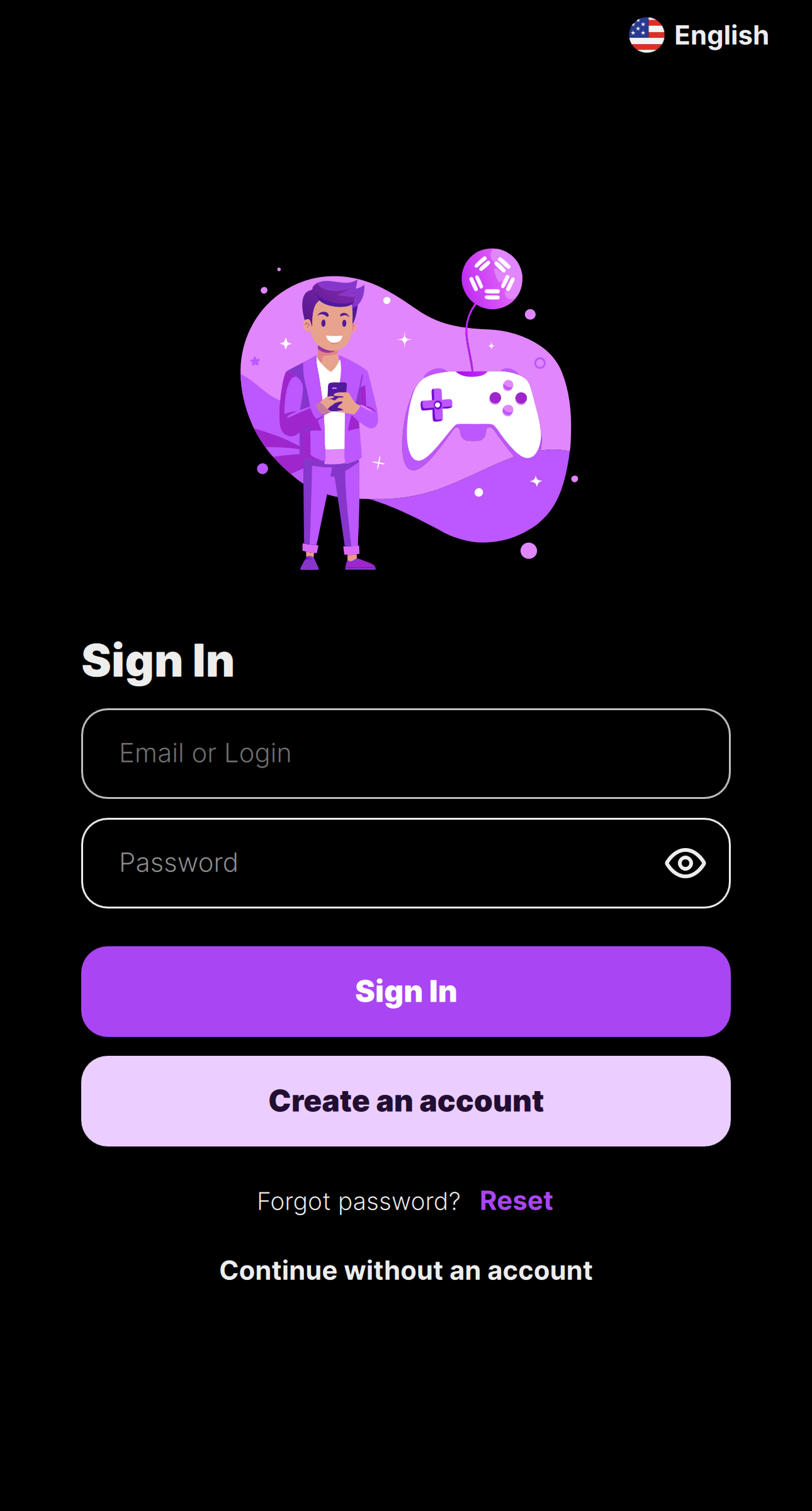
We strongly recommend using an account.
- With an account, your profiles and settings are synced across your devices.
- Without an account, data stays only on the current device.
- If you reinstall the app while using no account mode, your profiles and settings are lost.
You can still use Continue without an account, but this is not recommended for regular use.
2. Understand the main menu

The bottom navigation has 3 main sections:
- Profiles: prebuilt and personal profiles.
- Settings: app options and account settings.
- Help: support, feedback, and links to official resources.
3. Review important settings
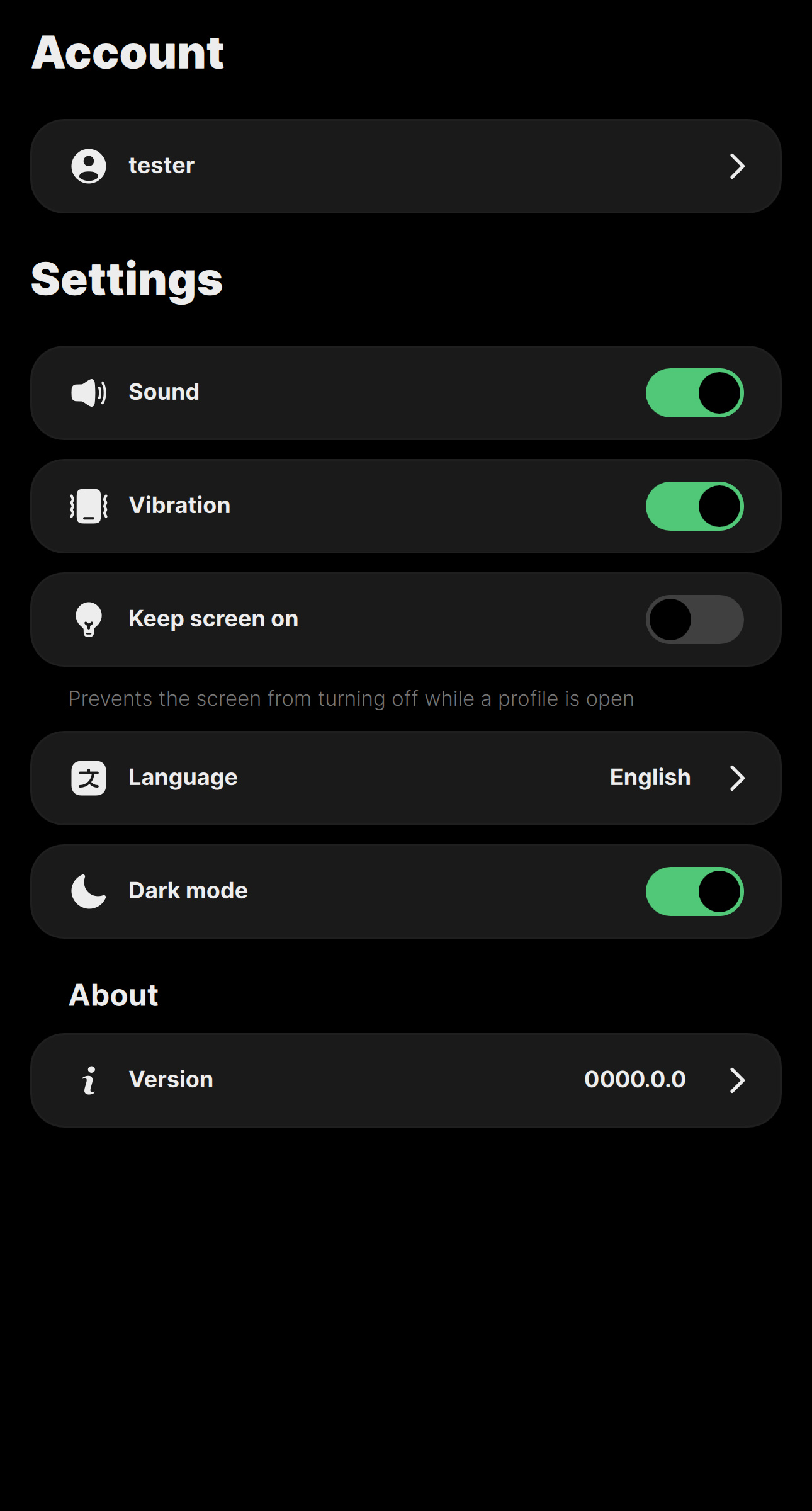
In Settings, you can manage:
- Sound and vibration
- Keep screen on
- Language
- Dark mode
- Account access and sync options
4. Prebuilt profiles
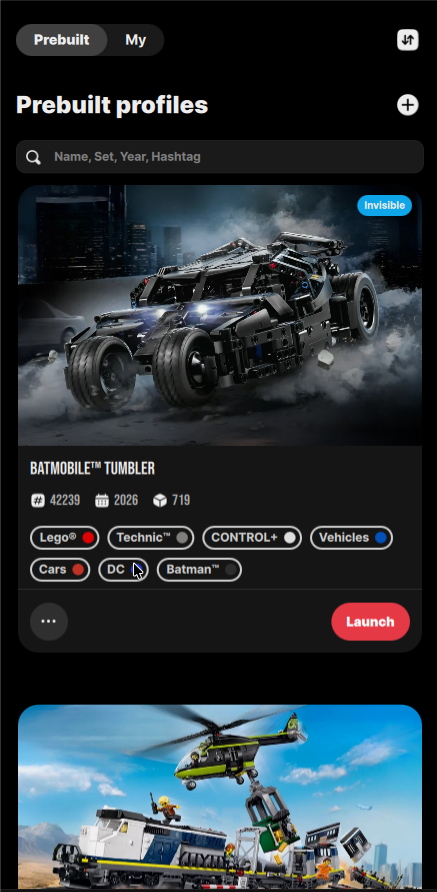
Use Prebuilt profiles to:
- Quickly control LEGO and other official sets.
- Learn techniques from ready-made block code examples.
Prebuilt profiles can be modified for experiments, but your changes are not saved. Each prebuilt profile is reset to its original state the next time you open it.
Follow this sequence for a prebuilt profile:
- Open the desired prebuilt profile.
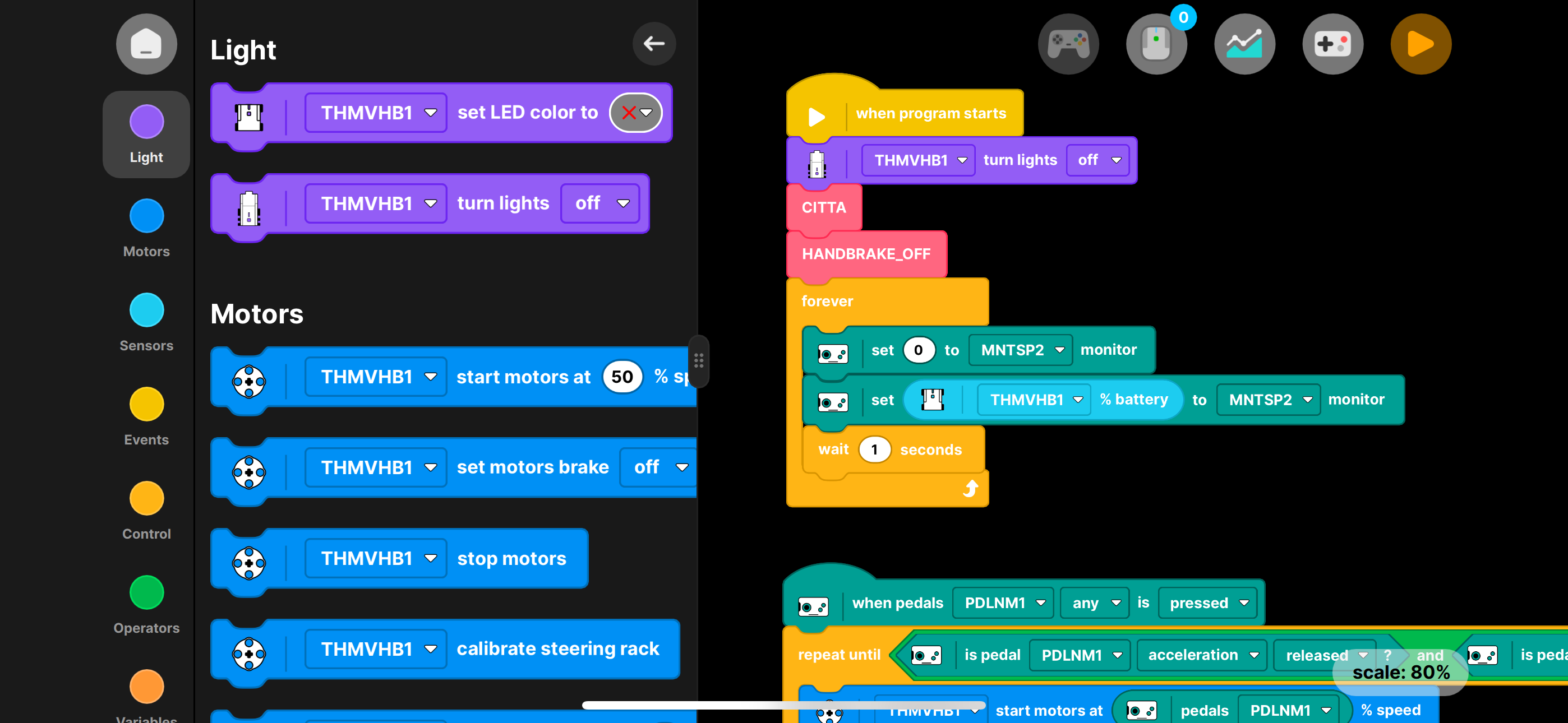
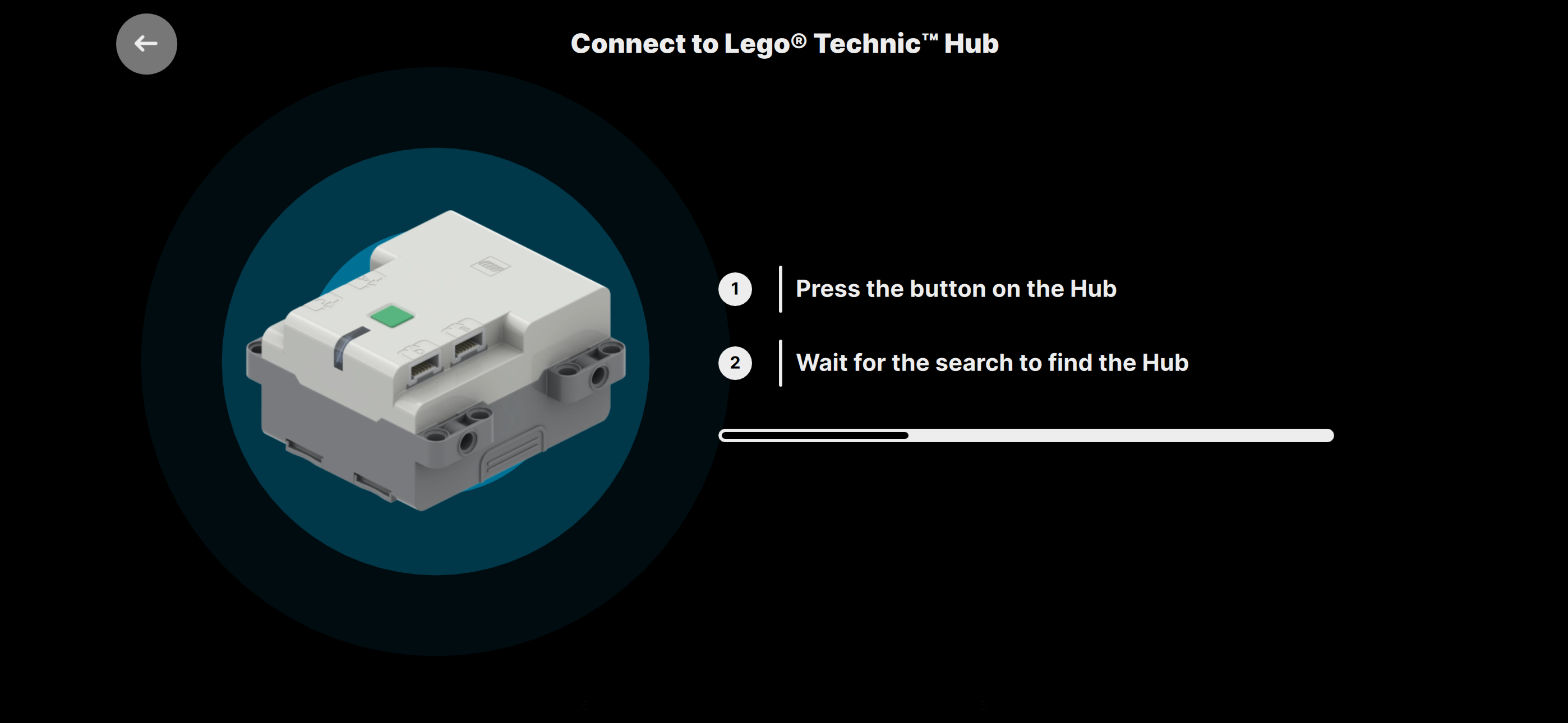
- Connect the hub.
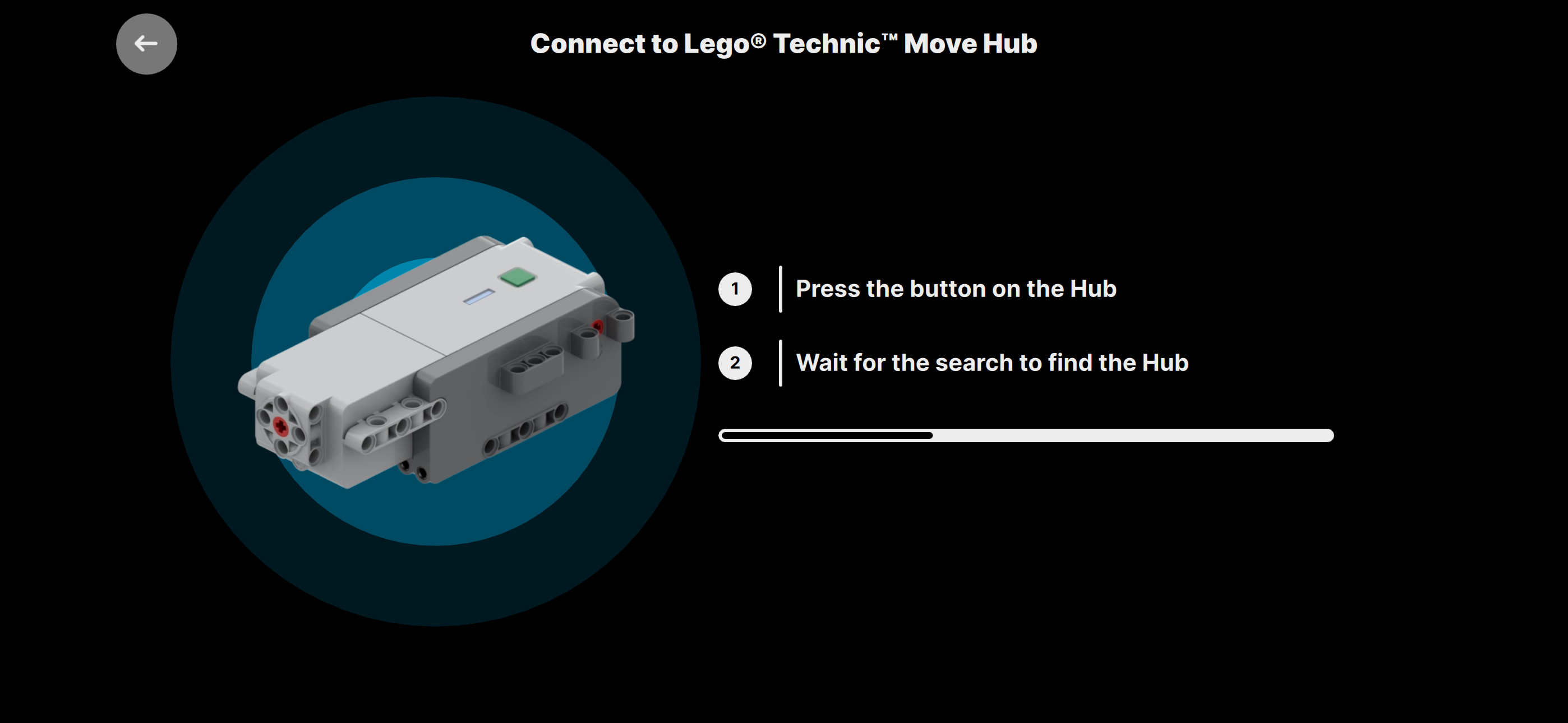
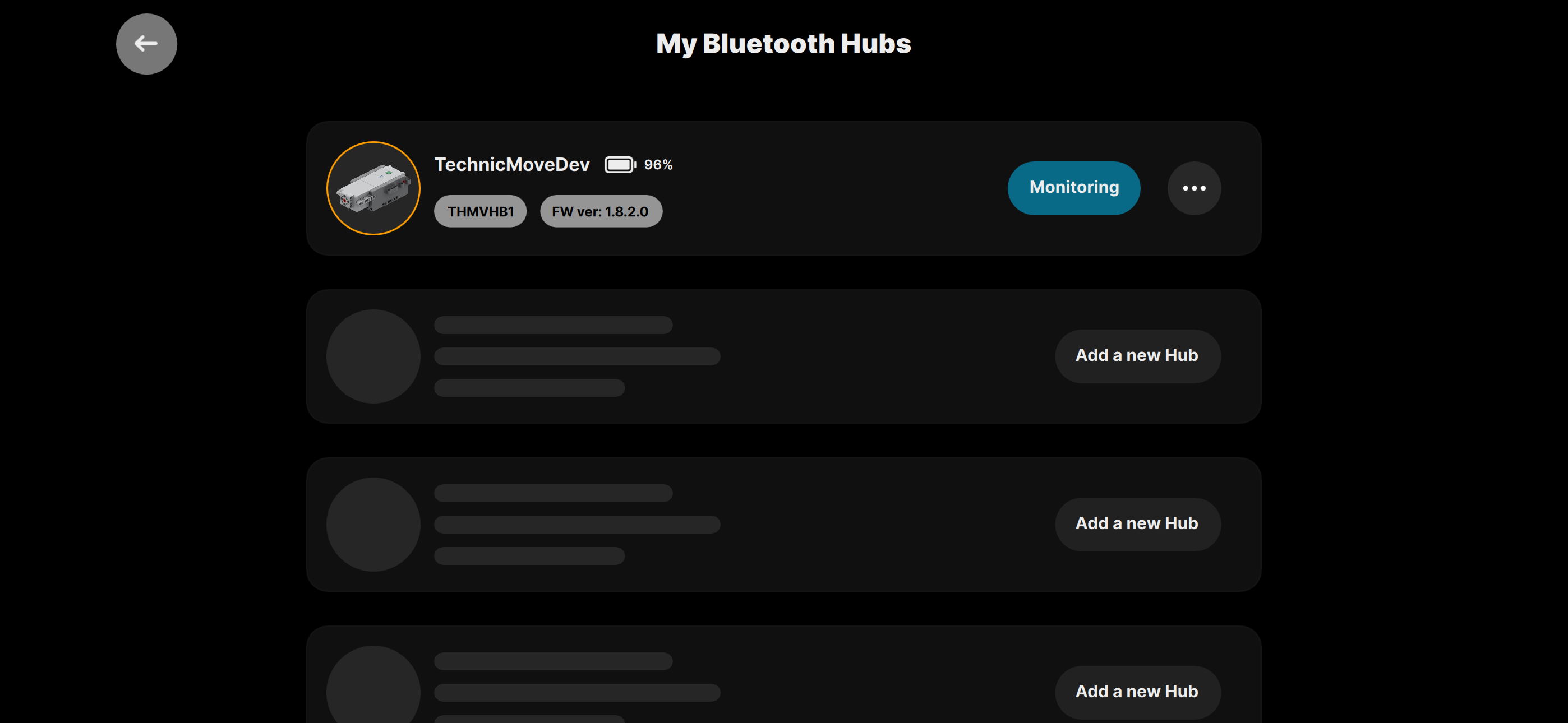
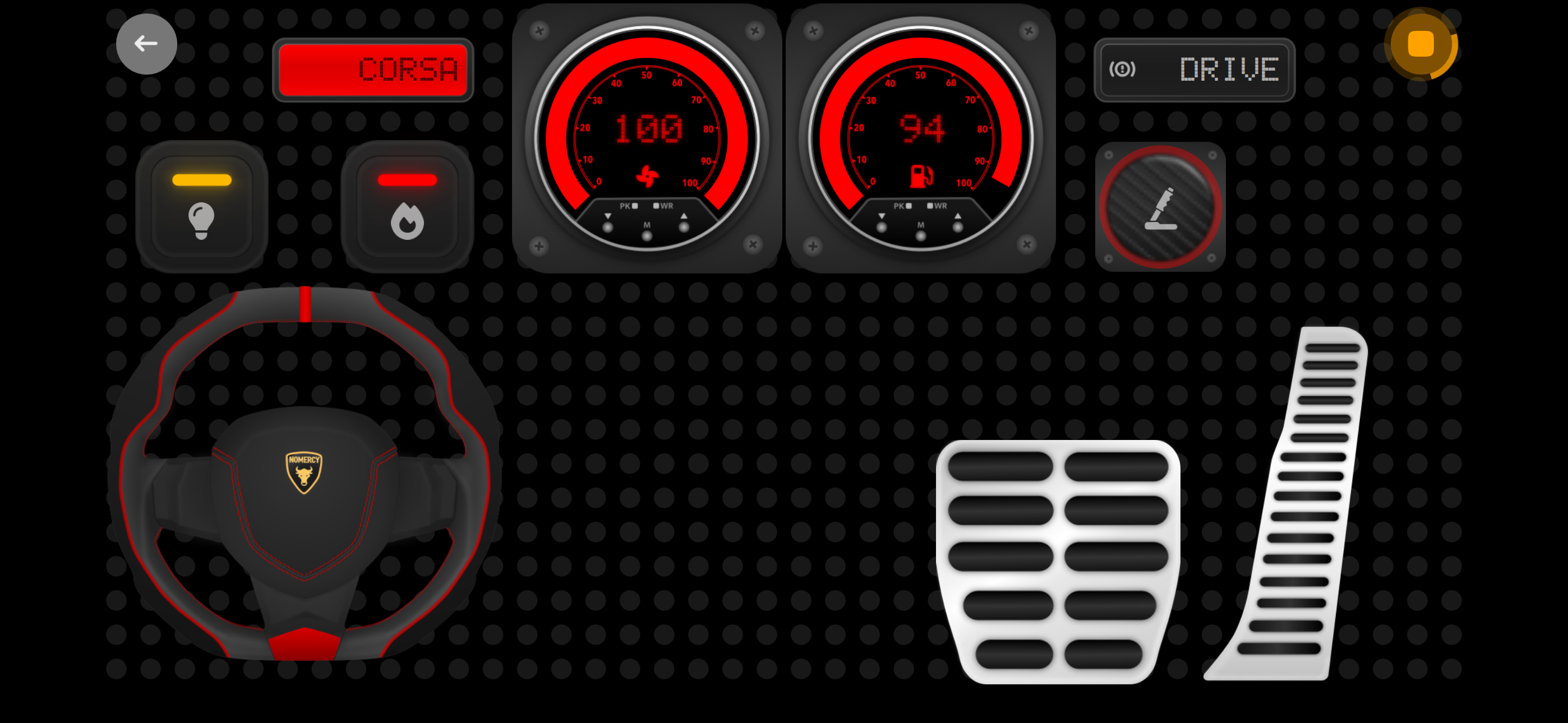
- Select the dashboard and press Play.
5. User-owned profiles
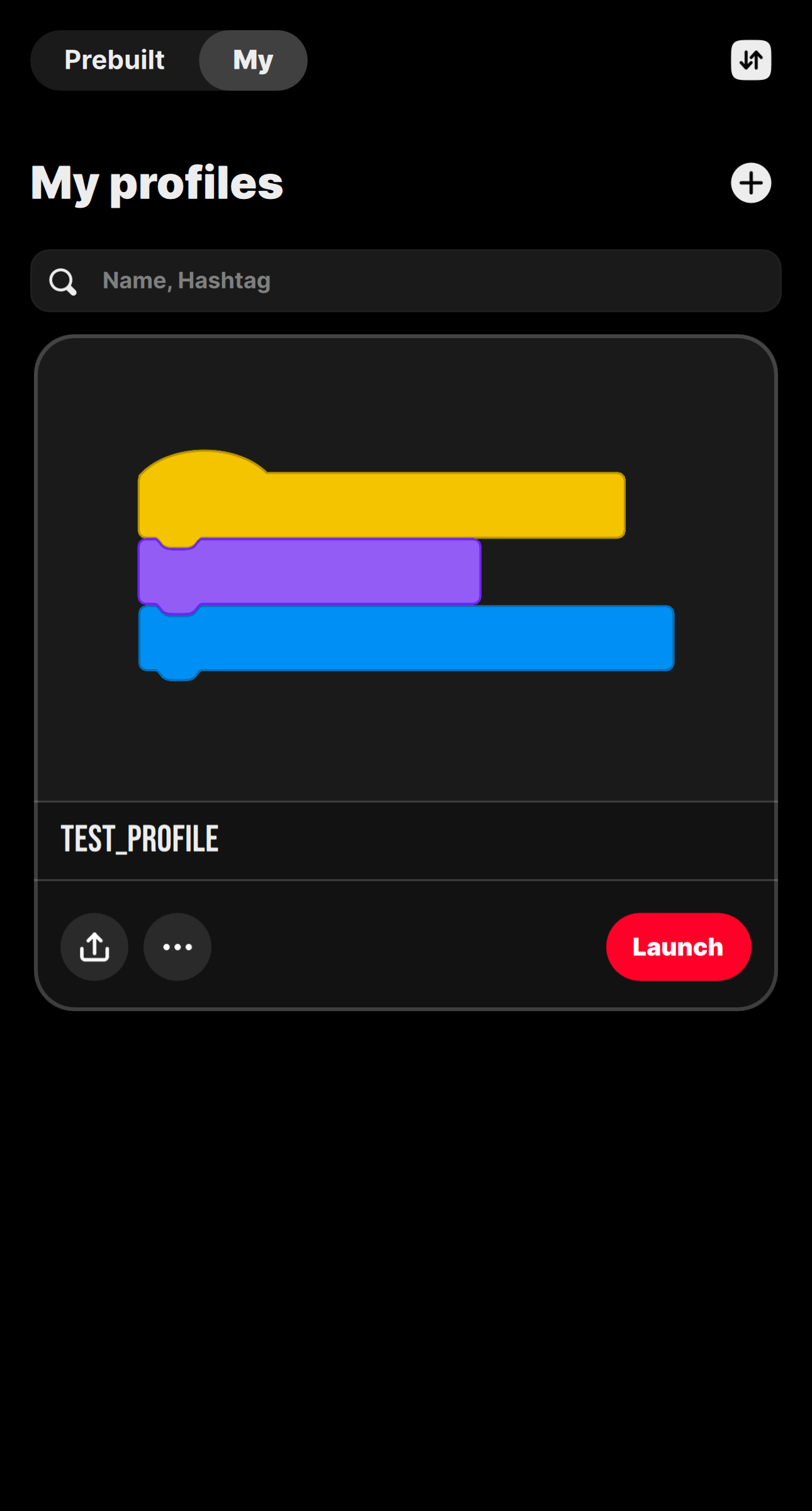
Use My profiles for your own creations.
- You can create and keep as many personal profiles as you need.
- Launch any profile directly from this page.
Follow this sequence for a user-owned profile:
- Create or import a profile.
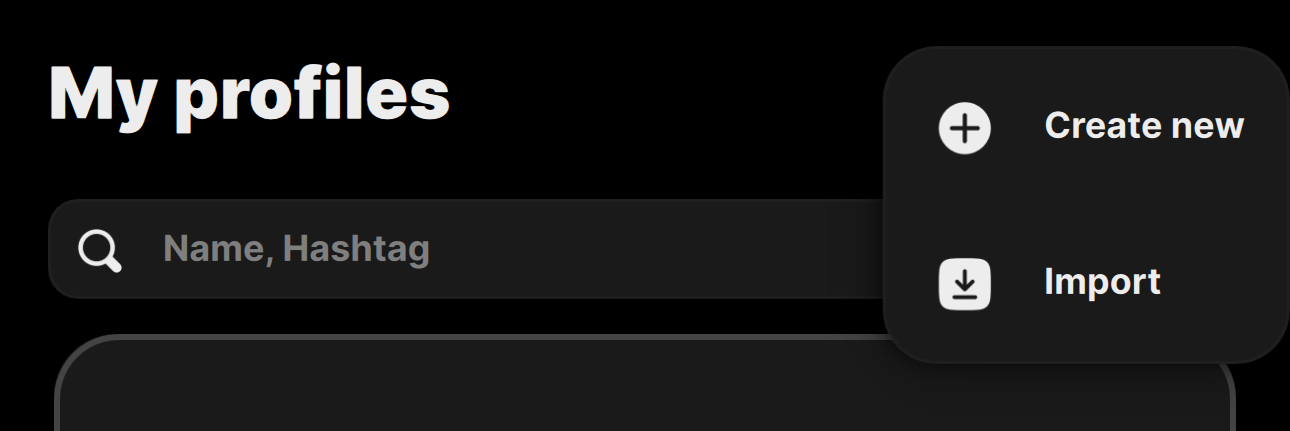
You can create a new profile or import one from your device by selecting an already created profile file (.dat).
- Create a new profile.
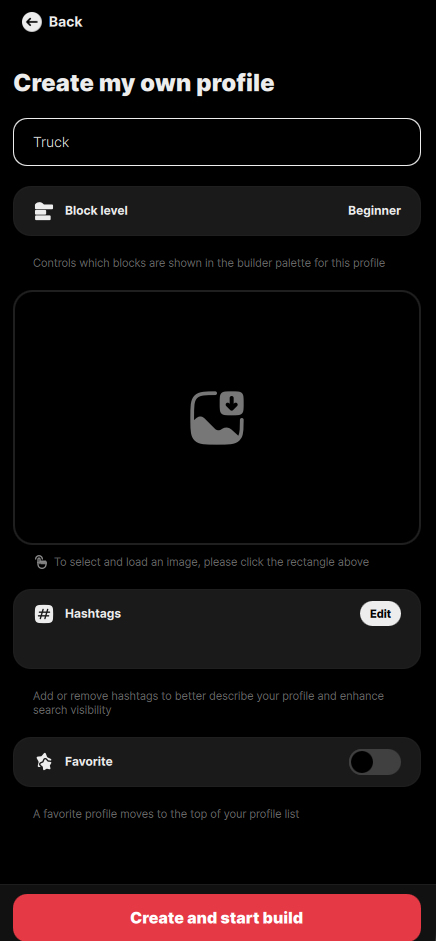
Enter the desired profile name. Optionally, you can select a picture from your gallery for this profile.
- Add hubs to the profile.
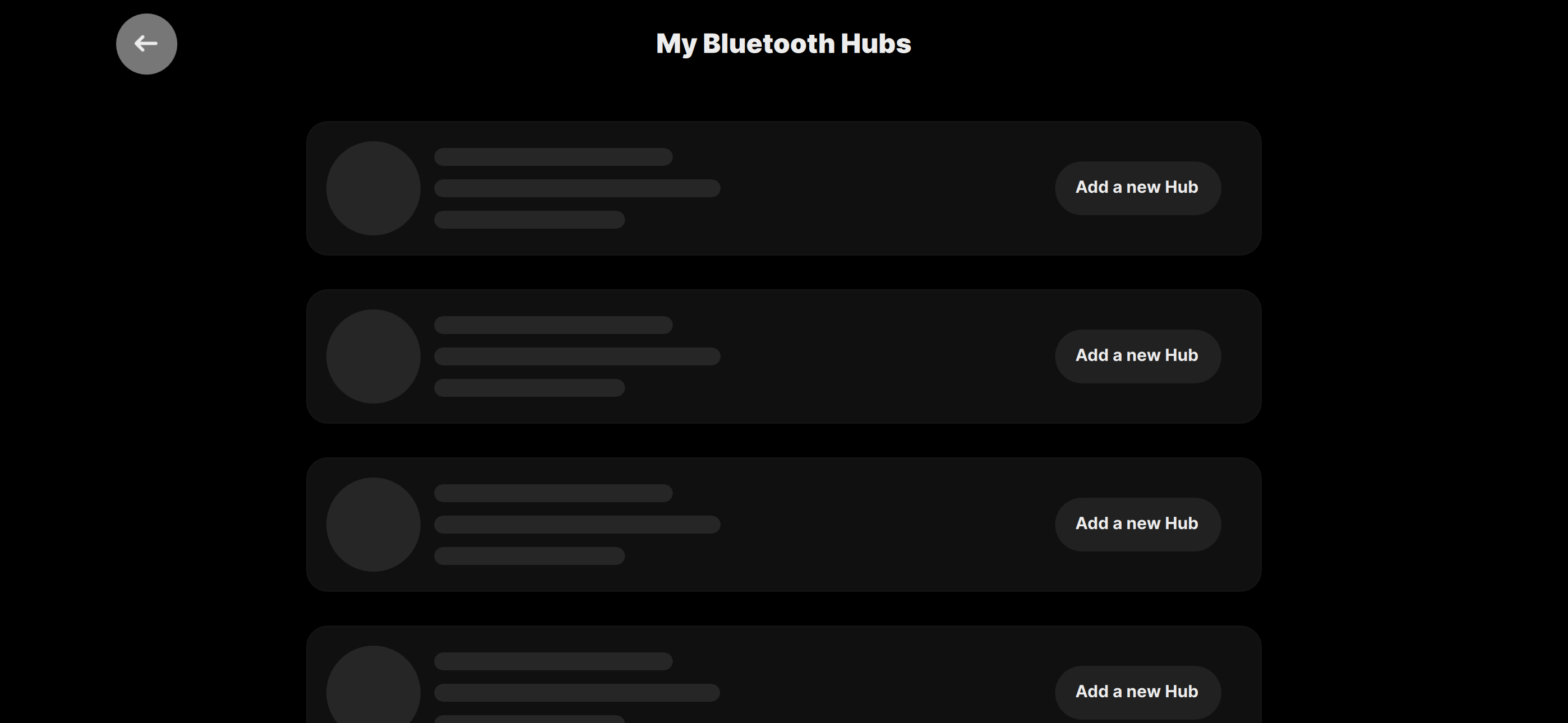
By default, up to 2 hubs can be added to a profile. To extend the number of allowed hubs to 5, additional hub slots should be purchased.
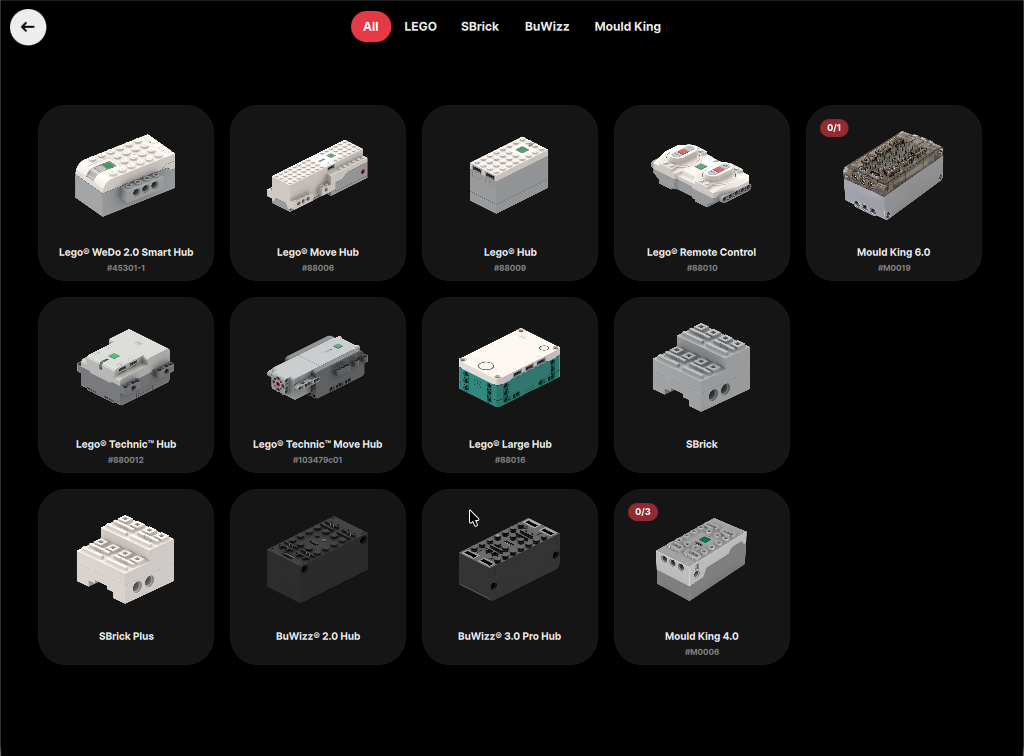
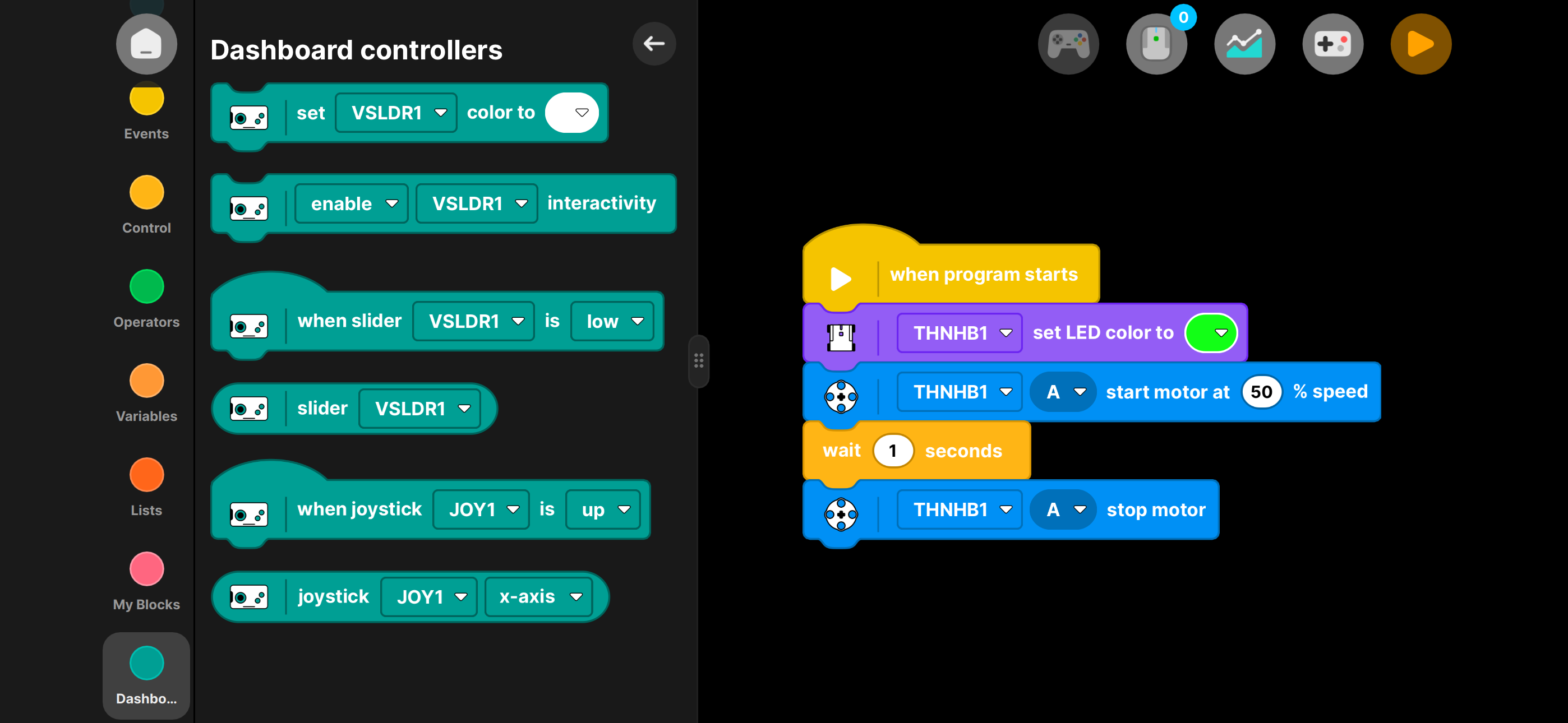
- Open the program page and make the desired program for your model by connecting blocks.
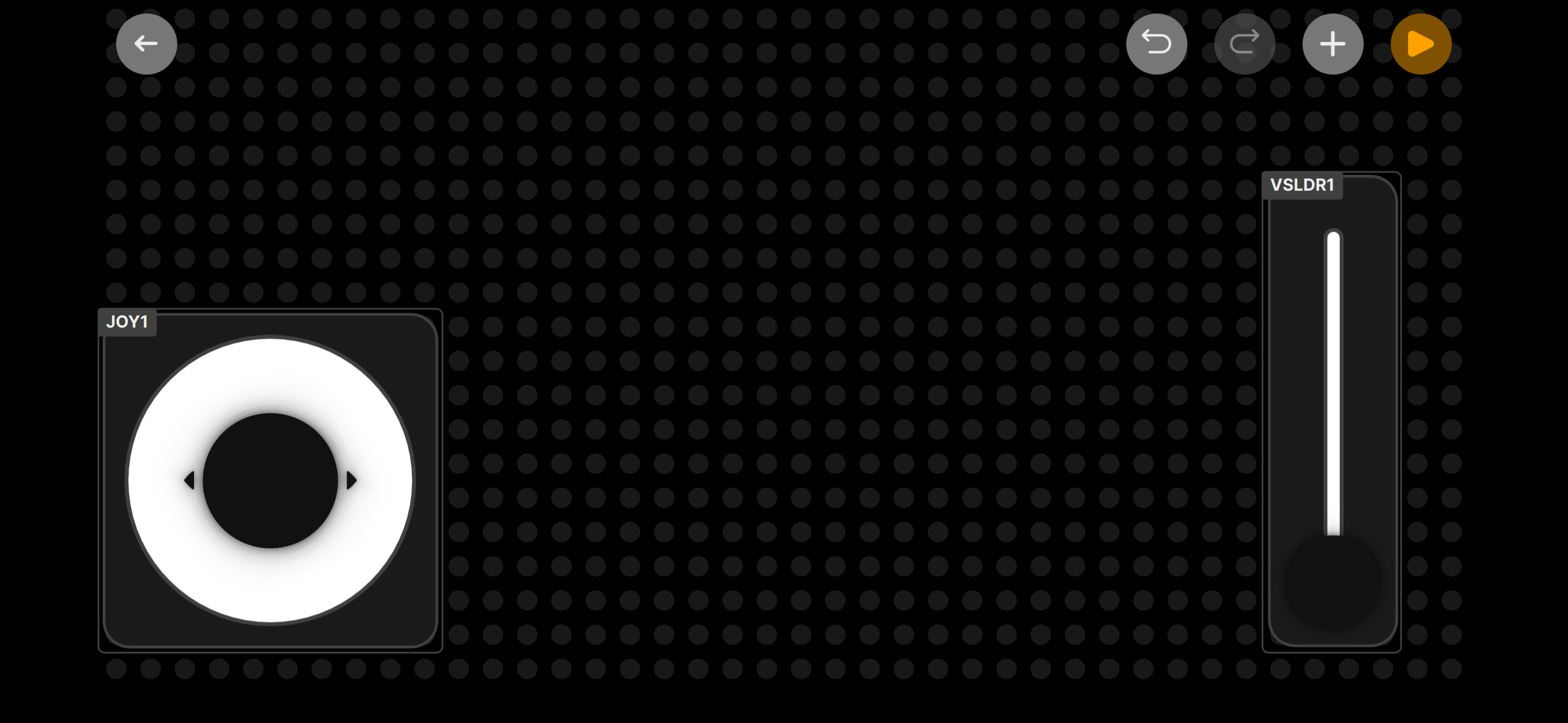
- Open dashboard to add on-screen controllers that can be connected to hub motors.
- Press Play to run the profile.
You are ready to drive and iterate on your profile.
6. Use Help when needed
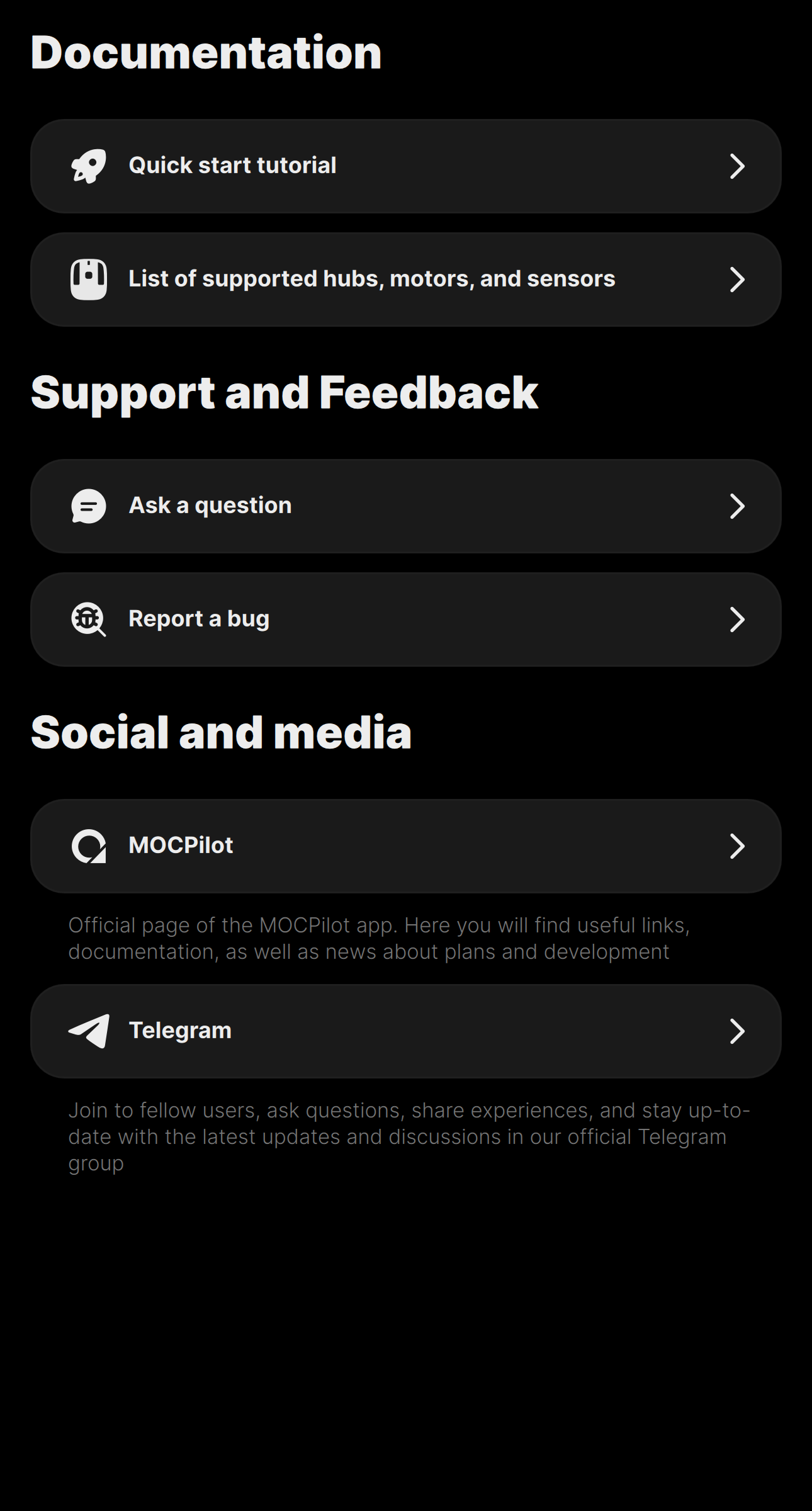
The Help page is the central place to:
- Open the quick start tutorial
- Ask a question
- Report a bug
- Open official MOCPilot links and community channels