Firmware updating
MOCPilot can update firmware on supported LEGO Powered Up hubs when a newer compatible firmware version is available.
Firmware updates may be required before a hub can work correctly with MOCPilot. Newer firmware can improve compatibility, fix hub behavior, and make sure the app can use the features expected for that hub model.
Supported hubs
Firmware updating is currently supported for these hubs:
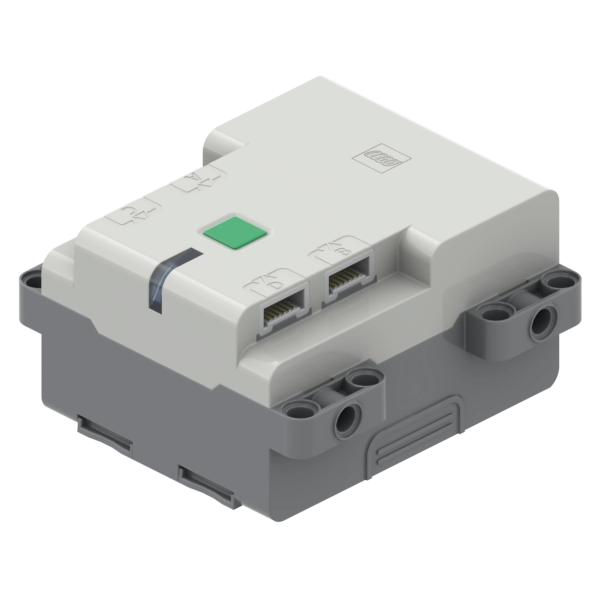
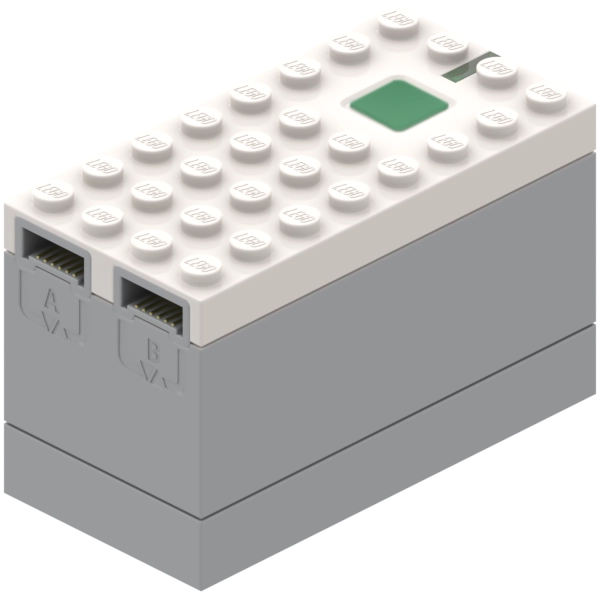
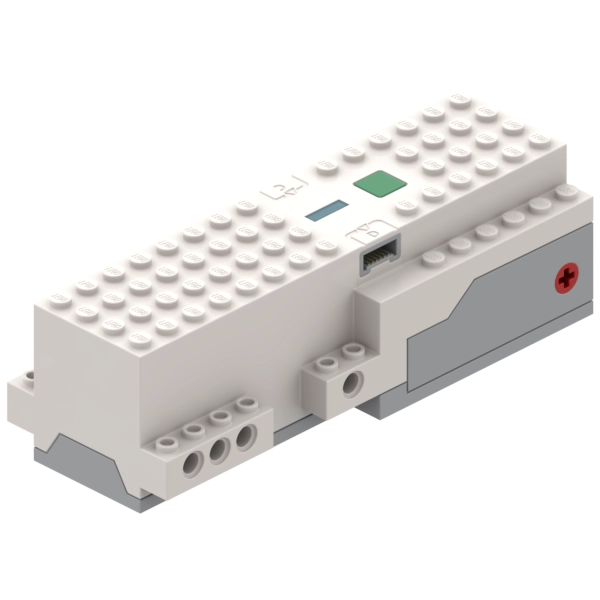
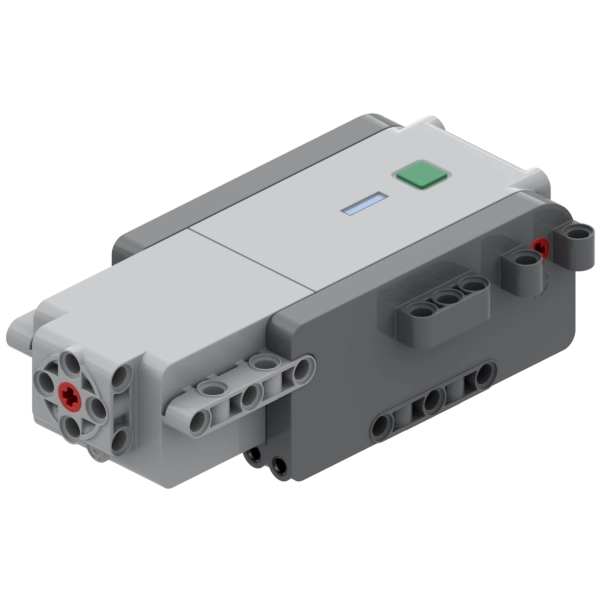
Before you start
Make sure the hub and the device running MOCPilot have enough battery power before starting the update.
Keep the hub powered on during the whole process. Keep your phone, tablet, or computer close to the hub so the Bluetooth connection stays stable. Do not close MOCPilot, turn off Bluetooth, or power off the hub while firmware is being uploaded.
Interrupting a firmware update may leave the hub firmware in an incomplete state. If that happens, the hub may need firmware recovery before it can be used again.
Starting the update
When you connect a hub, MOCPilot checks the firmware version installed on the hub. If the app detects that a newer firmware version is required, it shows a firmware update dialog.
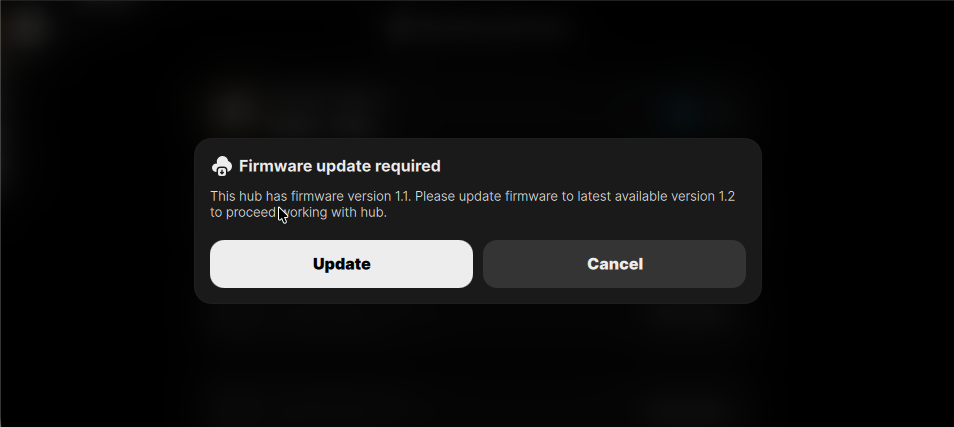
Select Update to start the firmware update immediately.
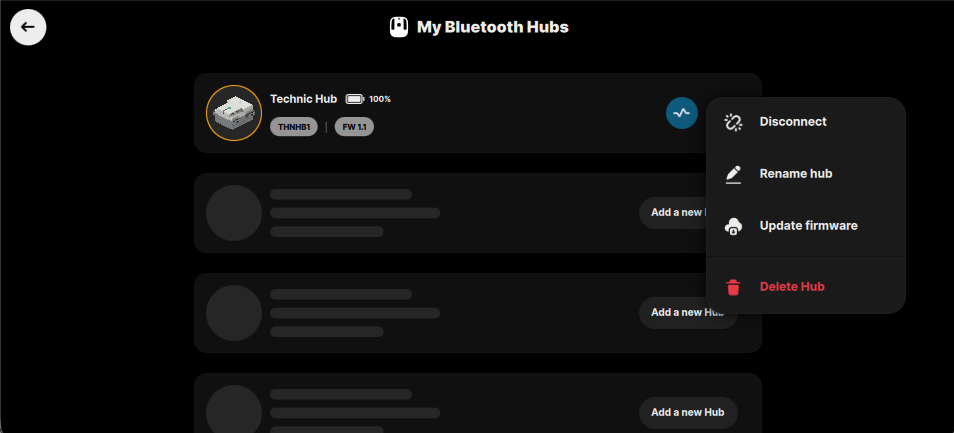
If you do not want to update right away, select Cancel. You can start the update later from the hub context menu.
Updating later from the hub menu
To start the firmware update manually:
- Open My Bluetooth Hubs.
- Find the hub that needs updating.
- Open the hub context menu.
- Select Update firmware.
During the firmware update
After the update starts, MOCPilot uploads the firmware to the hub and shows the update progress.
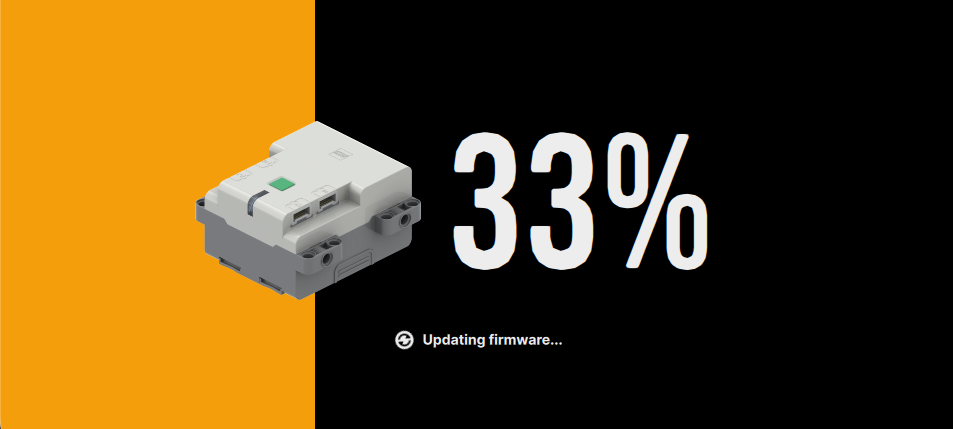
Wait until the upload is complete. The hub may restart or temporarily disconnect while the new firmware is being applied.
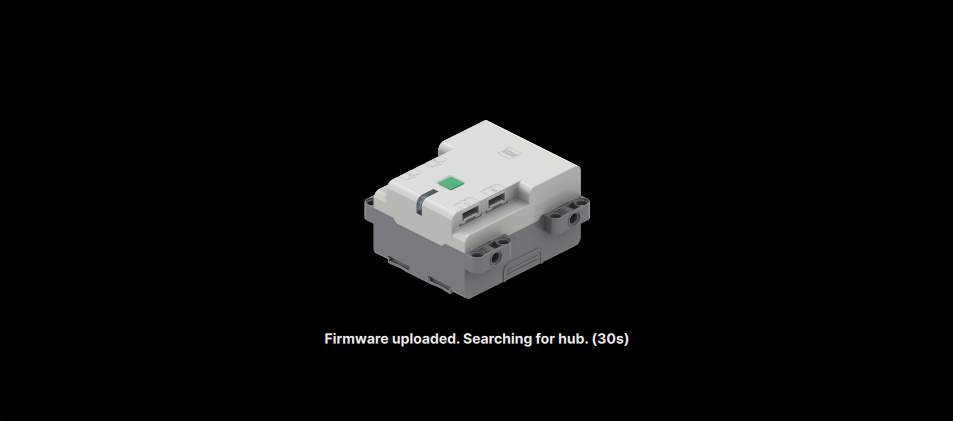
After the firmware is uploaded, MOCPilot searches for the hub again. Keep the hub nearby and wait for the app to reconnect.
Finishing the update
When the update finishes successfully, MOCPilot shows a confirmation dialog.
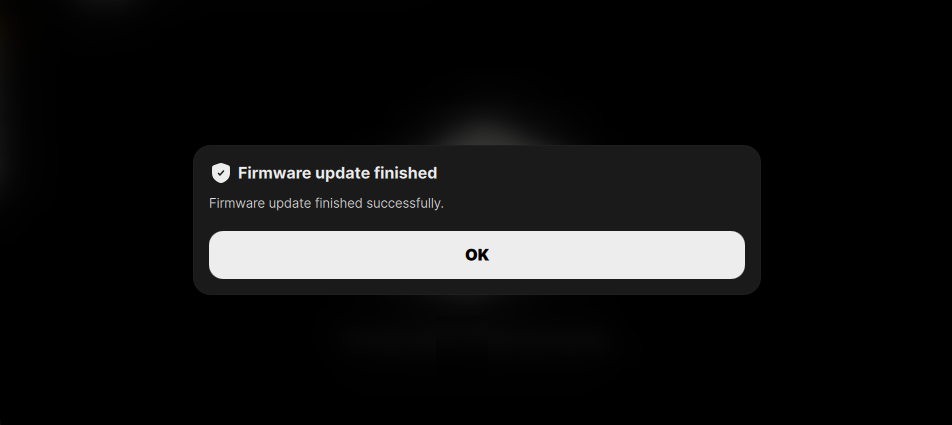
Select OK. The hub will reconnect, and the hub card will show the updated firmware version.
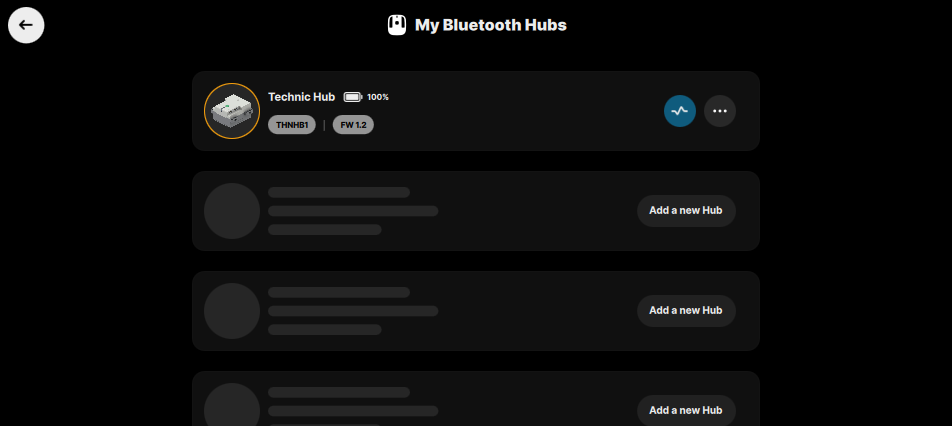
You can now continue using the hub with MOCPilot.
If the update fails
If the update does not finish successfully, MOCPilot shows a firmware update failed message.
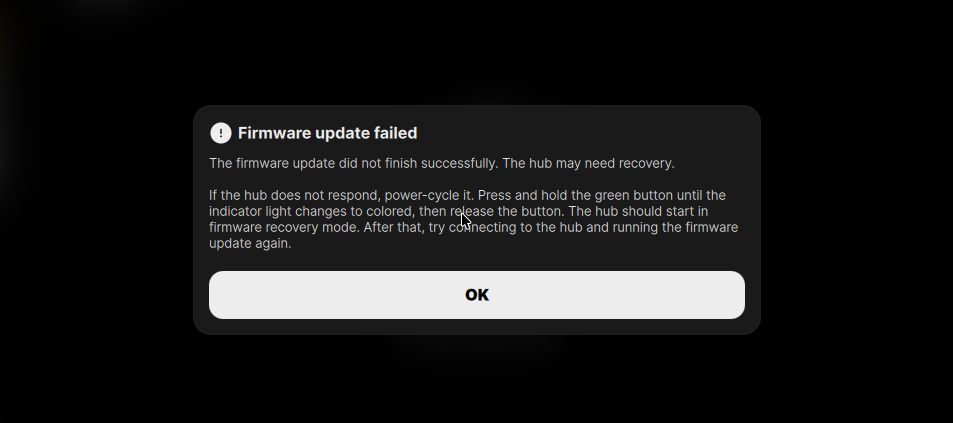
First, try to power-cycle the hub and run the firmware update again:
- Turn the hub off.
- Turn the hub on again.
- Keep the hub close to your device.
- Connect to the hub in MOCPilot.
- Start the firmware update again.
If the hub does not respond normally, firmware recovery may be required. Follow the Recovery hub firmware guide for detailed recovery instructions.